
Remote Server
This configuration, in essence, retrieves emails from the IMAP server and loads them into the local memory. This allows you to perform various mail operations on your computer that alter the status of these emails. While the original mail status is stored on your IMAP email server, an updated status is only stored locally after certain operations have been performed. Reading or deleting a new email, for example, changes the local status. However, if you exit NeoMutt directly, these status changes will not be reflected on the remote server. When you restart NeoMutt and reload emails from the IMAP server, any local email status updates from your previous login will be lost. To push the local status to your remote server, press the $ key.
Benefits of using NeoMutt as an email client:
- Uses NeoVim as the text editor, making manual email editing extremely fast
Drawbacks of using NeoMutt as an email client:
- Many beautifully crafted HTML emails may not render properly
- NeoMutt configuration is quite complex, which can be discouraging for beginners
Configuration environment:
- Operating System: macOS Tahoe 26.0.1
- Terminal: iTerm2 or Kitty
- Text Editor: Neovim
- Email Client: NeoMutt
- Contact Management: khard
- Rich Format Viewing Tools: w3m/zathura
The entire configuration is based on instant login to remote mail servers. When there are many emails on the server, refreshing the mail list during each login takes some time—loading 1000 emails takes approximately a few seconds to over ten seconds.
File Structure
For this article (remote IMAP mode only), here is the simplified file structure you need:
~/.config/neomutt/
├── neomuttrc                 # Main entry point
├── options                   # General settings
├── mappings                  # Keybindings and macros
├── set_status                # Dynamic status bar
├── mailcap                   # MIME type handlers
├── accounts/
│   ├── twine                 # Account selector (sources twine-remote)
│   ├── twine-remote          # Remote IMAP configuration
│   └── twine-signature       # Email signature
└── themes/
    └── rebelot.neomuttrc     # Color theme
The neomuttrc is the main entry point, which sources the following independent configuration files:
optionsmappingsthemes/rebelot.neomuttrc
accounts/twine(default account)With these four files configured, you can smoothly use NeoMutt in the terminal to receive, view, edit, send, reply to, and forward emails—covering all basic email client functionalities.
The
mailcapfile adds extra capabilities after the basic text email functionality is set up, such as viewing HTML-formatted emails, PDF attachments, and image attachments in NeoMutt. This configuration file is referenced withinoptions.The
set_statusfile defines a dynamic status bar format with Unicode glyphs and a command substitution that displays the last mail sync time. It is sourced periodically via atimeout-hookdefined in the theme file.
Installation
On macOS, we use Homebrew to install all necessary software. Open your terminal (I use iTerm2) and run the following commands:
brew install neomutt
brew install w3m zathura
Configuration Files
neomuttrc
The main configuration file ~/.config/neomutt/neomuttrc serves as the primary entry point, sourcing other configuration files in sequence:
# Filename: ~/.config/neomutt/neomuttrc
# @author Alowree XU
# @since 2026

#### Account-specific and Mailboxes ####
# Set your default email account
source $HOME/.config/neomutt/accounts/twine

# Set shortcuts for switching email accounts
macro index,pager <f2> '<sync-mailbox><enter-command>source ~/.config/neomutt/accounts/twine<enter><change-folder>!<enter>'
macro index,pager <f3> '<sync-mailbox><enter-command>source ~/.config/neomutt/accounts/biaget<enter><change-folder>!<enter>'
macro index,pager <f4> '<sync-mailbox><enter-command>source ~/.config/neomutt/accounts/remote-soundfreaq <enter><change-folder>!<enter>'

#### General Settings ####
source options
source mappings

#### Theme ####
source themes/rebelot.neomuttrc
The main file sources the account configuration, basic settings, keybindings, and theme in sequence. The themes subdirectory contains multiple themes to choose from; here we use the rebelot theme. The accounts subdirectory contains the default twine account and several other email accounts; the keybindings for switching between accounts (F2, F3, F4) are defined here.
accounts
The accounts/twine file acts as a switch/selector between two modes for the Twine email account:
| Mode | File Sourced | Description |
|---|---|---|
| Local (maildir) | twine-local | Uses ~/.maildir/twine — fast, offline-capable, synced via mbsync |
| Remote (IMAP) | twine-remote | Uses IMAP server — slower, but always synced in real-time |
Important: For this guide, you should manually edit ~/.config/neomutt/accounts/twine to select the remote mode:
# In ~/.config/neomutt/accounts/twine:
# source ~/.config/neomutt/accounts/twine-local
source ~/.config/neomutt/accounts/twine-remote
This ensures you are connecting directly to the remote IMAP server rather than using the local maildir copy. This virtually uses twine-remote as our account.
# Filename: ~/.config/neomutt/accounts/twine-remote
# ~/.config/neomutt/accounts/twine-remote

# NeoMutt configuration for Twine account (alowree@twineintl.com)
# Remote IMAP server access

# ------------------------------------------------------------------------------
# Identity
# ------------------------------------------------------------------------------
set from            = "alowree@twineintl.com"
set real_name       = "Alowree Xu - Twine"

# ------------------------------------------------------------------------------
# SMTP
# ------------------------------------------------------------------------------
set smtp_url        = "smtps://alowree@twineintl.com@ud.1025.hk:465"
set smtp_authenticators = "login"
set smtp_pass       = `security find-generic-password -a 'alowree@twineintl.com' -s 'neomutt-twine' -w`

# ------------------------------------------------------------------------------
# IMAP Authentication
# ------------------------------------------------------------------------------
set imap_user       = $from
set imap_pass       = `security find-generic-password -a 'alowree@twineintl.com' -s 'neomutt-twine' -w`

# ------------------------------------------------------------------------------
# Mail Storage (Remote IMAP)
# ------------------------------------------------------------------------------
set folder          = "imaps://alowree@twineintl.com@twineintlcom.securemail.hk:993"
set spool_file      = "+INBOX"

# IMAP connection settings
set imap_check_subscribed = no
set imap_keepalive    = 300
unset imap_passive

# ------------------------------------------------------------------------------
# Standard Folders
# ------------------------------------------------------------------------------
set postponed       = "+Drafts"
set trash           = "+Trash"
set record          = "+Sent"
set signature       = "~/.config/neomutt/accounts/twine-signature"

# ------------------------------------------------------------------------------
# Mailboxes (Sidebar)
# ------------------------------------------------------------------------------
mailboxes "+INBOX" "+Sent" "+Drafts" "+Trash"

# ------------------------------------------------------------------------------
# Hooks
# ------------------------------------------------------------------------------
# Re-fetch password when connecting to this account
account-hook $folder "set imap_pass=`security find-generic-password -a 'alowree@twineintl.com' -s 'neomutt-twine' -w`"

# vim: set filetype=neomuttrc:
Key points:
- We use the
Passwordsapp on macOS to manage the passwords, so that you don't need to configureimap_passandsmtp_passin explicit text - When
account-hookwill be triggered? Theaccount-hookis triggered whenever NeoMutt connects to the IMAP folder specified in$folder(e.g., when opening the mailbox, checking for new mail, or switching to this account). It re-fetches the password from macOS Keychain at connection time, ensuring fresh credentials are used for each session. - IMAP Keepalive: Set to 300 seconds (5 minutes) to maintain persistent connections to the remote server
- IMAP Passive Mode: Disabled (
unset imap_passive) to allow NeoMutt to actively check for new mail rather than waiting for user action - IMAP Subscribed Folders: Disabled (
set imap_check_subscribed = no) to check all folders on the server, not just subscribed ones
options
# Filename: ~/.config/neomutt/options
# ~/.config/neomutt/options

# @author Alowree XU
# @since 2026-01-23

# NeoMutt Configuration - General Options

# Official manual page: https://neomutt.org/guide/reference

###############################################################################
# EDITOR AND COMPOSITION
###############################################################################
set editor = "nvim"                        # Use Neovim as editor
set edit_headers                           # Show headers when composing
set ask_cc                                 # Prompt for CC recipients
set forward_quote                          # Include message in forwards
set forward_decode                         # Decode when forwarding
set forward_format = "Fwd: %s"             # Format of subject when forwarding
set reply_to                               # Reply to Reply-To: field
set fast_reply                             # Skip to compose when replying
set include                                # Include message in replies
set attribution_intro = "On %d, %n wrote:" # Format of quoting header
set sig_dashes = no                        # No '-- ' dashes before signature
set sig_on_top = yes                       # Signature above quoted text
set text_flowed = yes                      # Use format=flowed for outgoing text
set fcc_attach                             # Save attachments with the body

# Note: forward_attachments = yes is DEFAULT setting

###############################################################################
# DISPLAY AND PAGER
###############################################################################
set pager_index_lines = 10                 # Show 10 lines of Index in Pager
set pager_context = 5                      # Lines of context between pages
set pager_stop                             # Don't auto-advance at message end
set smart_wrap                             # Wrap at word boundaries
set wrap = 90                              # Email view width
set tilde                                  # Show ~ at end of message
set markers = no                           # No '+' for wrapped lines
set allow_ansi                             # Allow ANSI codes in messages
set arrow_cursor = "no"                    # Use block cursor
set menu_scroll                            # Scroll in menus

###############################################################################
# CHARACTER ENCODING
###############################################################################
set charset = "utf-8"                      # Display/input encoding
set send_charset = "utf-8"                 # Outgoing email encoding
set assumed_charset = ""                   # Assume no charset if unspecified

# Note: These are redundant but kept for clarity
# Default: charset = "" (auto from locale)
# Default: send_charset = "us-ascii:iso-8859-1:utf-8"
# Default: assumed_charset = ""

###############################################################################
# REGULAR EXPRESSIONS
###############################################################################
set reply_regex = "^(([Rr][Ee]?(\[[0-9]+\])?: *)?(\[[^]]+\] *)?)*"
# Custom reply detection (handles [R], [RE], tags)
# Default: "^((re|aw|sv)(\[[0-9]+\])*:[ \t]*)*"

set quote_regex = "^( {0,4}[>|:#%]| {0,4}[a-z0-9]+[>|]+)+"
# Quote detection in replies
# Default: "^( {0,4}[>|:#%]| {0,4}[a-z0-9]+[>|]+)+"

###############################################################################
# MESSAGE HANDLING AND SORTING
###############################################################################
set sort = reverse-date                    # Sort by date, newest first
# Note: sort = date is default for non-threaded

set wait_key = no                          # No "press key to continue"
set mark_old = yes                         # Mark read messages as old on exit
set collapse_all                           # Collapse all threads by default
set uncollapse_jump                        # Uncollapse when jumping to thread
set sleep_time = 0                         # No pause for info messages
set beep = no
set beep_new = yes                         # Beep on new mail
set pipe_decode                            # Strip headers when piping
set thorough_search                        # Search in decoded messages
set flag_safe                              # Flagged messages protected
set auto_tag                               # Commands apply to all tagged
set use_envelope_from                      # Use envelope-from for delivery

# Note: beep is a global bell control, beep_new only for new mail
# Default: beep = yes, beep_new = no

###############################################################################
# SIDEBAR CONFIGURATION
###############################################################################
# set sidebar_visible                       # Uncomment to enable sidebar
set sidebar_width = 30                      # Width of sidebar
set sidebar_format = "%B %<N?(%N)>%* %S"    # Sidebar display format
# set sidebar_sort = unread                   # Sort by unread count
set sidebar_folder_indent = no              # No indentation for folders
set sidebar_short_path = yes                # Show short folder paths
set sidebar_next_new_wrap = yes             # Wrap when navigating new messages

# Note: sidebar_sort = browser_sort is DEFAULT setting
# You have sidebar_sort = unread overriding this

###############################################################################
# FOLDER BROWSER
###############################################################################
# set browser_sort = alpha                    # Sort folders alphabetically
set imap_check_subscribed                   # Only check subscribed folders
set auto_subscribe                          # Auto-subscribe to new folders


###############################################################################
# HEADER DISPLAY
###############################################################################
ignore *                                         # Ignore all headers
unignore from: to: cc: date: subject: x-label:   # Show only these
unhdr_order *                                    # Clear header order
hdr_order from: to: cc: date: subject: x-label:  # Set order

# --- Notmuch Integration ---
set nm_default_url = "notmuch:///Users/alowree/.maildir" # Use your absolute path
set virtual_spool_file = yes                             # Allow virtual folders

# Define Virtual Mailboxes (saved searches)
# virtual-mailboxes \
#     "Unread" "notmuch://?query=tag:unread and not tag:spam" \
#     "Today" "notmuch://?query=date:today" \
#     "Last Week" "notmuch://?query=date:7days..now" \
#     "Starred" "notmuch://?query=tag:flagged"

# --- Macros for Searching ---
# Press 'L' to search all mail via Notmuch
# macro index L "<vfolder-from-query>" "Search with Notmuch"

###############################################################################
# MIME AND ATTACHMENTS
# https://neomutt.org/guide/mimesupport.html#auto-view
###############################################################################
set mime_type_query_command = "file --mime-type -b %s"  # Detect MIME types
set count_alternatives = yes                            # Recurse into multipart

# Explicitly telling NeoMutt to view an attachment with the MIME viever
# defined in the mailcap file
set mailcap_path = $HOME/.config/neomutt/mailcap

# Auto viewing MIME attachments while in the pager
# For this to work, you must define a viewer in the mailcap file
# which uses the `copiousoutput` option to denote that it is non-ineractive.
# Usually, you also use the entry to convert the attachment to
# a text representation which you can view in the pager.
#
# Since I normally view the attachment in separate window,
# I probably do not need this at all.
# You still need this to auto view HTML emails
auto_view text/html text/enriched text/x-vcard application/x-pkcs7-signature

# Control which version is displayed when both plain text and HTML exist
# - text/plain first: shows markdown-style bullets (- item)
# - text/html first: shows round bullets (• item)
#
# When commented out, HTML style takes precedence
# alternative_order text/plain text/html

###############################################################################
# CACHING
###############################################################################
set header_cache = "~/.cache/neomutt"
set message_cache_dir = "~/.cache/neomutt"    # Message cache location

###############################################################################
# NETWORK AND MAIL CHECKING
###############################################################################
set mail_check = 120                        # Check mail every 120 seconds
set mail_check_stats = yes                  # Show stats on mail check
set mail_check_stats_interval = 120         # Update stats every 120s
set timeout = 30                            # Network timeout in seconds
set imap_idle = yes                         # Use IMAP IDLE for push

###############################################################################
# QUIT AND CONFIRMATION
###############################################################################
set confirm_append = no                     # Don't ask to save to folder
set quit                                    # Don't ask to quit
# Note: quit requires confirm_append=no to be truly silent

###############################################################################
# STATUS BAR
###############################################################################
set status_chars = " *%A"                   # Status bar characters
set status_format = "[ Folder: %f ] [%r%m messages%?n? (%n new)?%?d? (%d to delete)?%?t? (%t tagged)? ]%>─%?p?( %p postponed )?"

###############################################################################
# TEMPORARY FILES
###############################################################################
set tmp_dir = /tmp/$USER/neomutt            # Temporary directory

###############################################################################
# EXTERNAL TOOLS
###############################################################################
set query_command = "khard email --parsable --search-in-source-files '%s'"  # Address book

###############################################################################
# MISC SETTINGS
###############################################################################
# I'm not sure why this is not taking effect ...
# because I don't the corrent date format in index menu
# the current date format is of "Day dd/mm"
set date_format = "%Y-%m-%d %H:%M"          # Date display format
# Do I have to configure `index_format` separately?
#
set index_format = "%D %-15.15F %?X?[%4X] ?%Z %s"
# set index_format = "[%D] %-20.20F %?X?[%4X] ?%Z %s"

# vim: set filetype=neomuttrc:
Key points:
- Editor: Uses Neovim (
nvim) for editing email headers and body content - Reply Detection: Custom
reply_regexhandles various reply formats including[R],[RE], and numbered tags like[RE[2]] - Sorting: Emails sorted by
reverse-date(newest first) - Threading:
collapse_allenabled by default for cleaner thread view;uncollapse_jumpexpands threads when navigating to them - Sidebar: Width set to 30 columns with short folder paths; wraps around when navigating new messages
- Notmuch Integration: Configured for mail indexing with virtual folders (currently commented out); enables powerful search capabilities
- MIME Handling: Auto-views HTML, vCard, and S/MIME signatures inline using
mailcapviewers - Caching: Both header and message caches stored in
~/.cache/neomuttfor faster access - IMAP IDLE: Enabled for push-like email delivery notifications
- Date Format: Custom format
%Y-%m-%d %H:%Mfor consistent date display;index_formatshows sender, flags, and subject
mappings
Keybinding syntax:
bind [mode] [keysequence] [function] [description]
macro [mode] [keysequence] [actionstring] [description]
Actual mappings file:
# Filename: ~/.config/neomutt/mappings
# @author Alowree XU
# @since 2026

# ============================================================================
# GLOBAL & EXIT
# ============================================================================
bind index,pager,attach,browser,query,alias,compose q exit

# ============================================================================
# GENERAL NAVIGATION
# ============================================================================
bind index,pager,attach,browser       g       noop
bind index,pager                      d       noop
bind index,pager                      r       noop
bind index                            z       noop

bind index,attach,browser             gg      first-entry
bind index,attach,browser             G       last-entry

# Scrolling
bind index,pager,browser              \CF     next-page
bind index,pager,browser              \CB     previous-page
bind index,pager,browser              \CU     half-up
bind index,pager,browser              \CD     half-down
bind index,pager,browser              \CE     next-line
bind index,pager,browser              \CY     previous-line

# Search Navigation
bind index,pager,browser              N       search-opposite

# ============================================================================
# INDEX MODE (Message list)
# ============================================================================
bind index           h noop
bind index           j next-entry
bind index           k previous-entry
bind index           l display-message

# Filtering & Search
bind index           L limit
macro index          x "<limit>all\n" "show all messages (undo limit)"
macro index          S "<vfolder-from-query>" "Notmuch Global Search"

# ============================================================================
# PAGER MODE (Viewing messages)
# ============================================================================
bind pager                      h       exit
bind pager                      l       view-attachments
bind pager                      H       display-toggle-weed

# Local Pager Navigation
bind pager                      gg      top
bind pager                      G       bottom
bind pager                      j       next-line
bind pager                      k       previous-line
bind pager                      <Up>    previous-line
bind pager                      <Down>  next-line

# Jump previous/next emails while staying in Pager
bind pager                      J       next-entry
bind pager                      K       previous-entry

# ============================================================================
# ATTACHMENT MODE
# ============================================================================
bind attach,browser,alias       h       exit
bind attach                     l       view-attach
bind attach                     <space> view-mailcap

# ============================================================================
# BROWSER MODE (Folder navigation)
# ============================================================================
bind browser                    h       goto-parent
bind browser                    l       descend-directory
bind browser,alias              \r      select-entry

# ============================================================================
# SIDEBAR
# ============================================================================
bind index,pager                B        sidebar-toggle-visible
bind index,pager                \Ck      sidebar-prev
bind index,pager                \Cj      sidebar-next
bind index,pager                <Return> sidebar-open

# ============================================================================
# MAIL & REPLY
# ============================================================================
bind index,pager                gr  group-reply
bind index,pager                rl  list-reply
bind index,pager                ro  reply
bind index,pager                f   flag-message
bind index,pager,attach         F   forward-message

# Deletion Logic
bind index,pager                dd  delete-message
bind index,pager                D   purge-message
bind index,pager                dT  delete-thread
bind index,pager                dt  delete-subthread
bind index                      u   undelete-message

# Thread Management
bind index,pager                gt  next-thread
bind index,pager                gT  previous-thread
bind index                      za  collapse-thread
bind index                      zA  collapse-all
bind index                      zz  current-middle
bind index                      zt  current-top
bind index                      zb  current-bottom

# ============================================================================
# EDITOR & COMPLETION
# ============================================================================
bind editor                     ^T      complete
bind editor                     <tab>   complete-query
bind editor                     <space> noop

# ============================================================================
# EXTERNAL INTEGRATIONS & MACROS
# ============================================================================
# FZF Attachment (Compose Mode)
macro compose \Ca ":source ~/.config/neomutt/bin/attach_browser_fzf.sh|<enter>"

# Khard Address Book Integration
macro index,pager A "<pipe-message>khard add-email --headers=from,cc --skip-already-added<return>"
If you want to have a better understanding on each of the UI components such as index, pager, or browser, go to Screens and Menus for more details.
signature
Each account uses an independent signature file, specified via set signature in the corresponding account configuration file.
For example, the twine account's signature is defined in ~/.config/neomutt/accounts/twine-signature and referenced in ~/.config/neomutt/accounts/twine-remote with:
set signature = "~/.config/neomutt/accounts/twine-signature"khard
NeoMutt integrates with khard, a command-line address book that manages contacts stored in vCard files. This integration provides two key features:
Email Address Completion
When composing an email, you can autocomplete recipient addresses by pressing Tab. The query_command setting defines how NeoMutt queries khard:
# ~/.config/neomutt/options
set query_command = "khard email --parsable --search-in-source-files '%s'"
# ~/.config/neomutt/mappings
bind editor <Tab> complete-query
These two lines of code each is in a separate code file, one in options and the other mappings, but they work together as a feature.
How it works:
- Type a few characters of a contact's name or email (e.g.,
mich) - Press
Tabto trigger completion - If there's a single match, it autocompletes immediately
- If there are multiple matches, a dropdown list appears for selection
The --parsable flag ensures khard outputs in a format NeoMutt can parse, and --search-in-source-files searches across all configured vCard files.
Adding Contacts from Emails
Press A in the index or pager to add the current email's sender to your address book:
macro index,pager A "<pipe-message>khard add-email --headers=from,cc --skip-already-added<return>"This pipes the message headers to khard, which extracts the email address and adds it to your contacts. The --skip-already-added flag prevents duplicate entries.
mailcap
# Filename: ~/.config/neomutt/mailcap
# ~/.config/neomutt/mailcap
#
# ============================================================================
# NeoMutt Mailcap Configuration
# ============================================================================
#
# MAILCAP FLAGS REFERENCE:
# ------------------------
# copiousoutput  : Command outputs text for inline display (converters)
# needsterminal  : Command requires terminal access (TUI apps)
# (no flags)     : GUI app launches separately, no terminal needed
#
# See: man mailcap

# ============================================================================
# HTML EMAILS
# ============================================================================
# -dump converts HTML to plain text for inline display
text/html; w3m -I %{charset} -T text/html -dump; copiousoutput

# Fallback (if w3m unavailable - but lynx does not render tables)
# WARNING: does not render table inside message
# text/html; lynx -dump %s; copiousoutput; nametemplate=%s.html

# ============================================================================
# PLAIN TEXT
# ============================================================================
text/plain; nvim %s; needsterminal

# ============================================================================
# DOCUMENTS (PDF, EPUB)
# ============================================================================
# GUI viewers - launch detached, no flags needed
application/pdf; zathura %s
application/epub+zip; zathura %s

# Fallback for octet-stream PDF
# Test shows that fallback not required

# ============================================================================
# IMAGES
# ============================================================================
# Option A: Terminal viewer (Ghostty with Kitty graphics protocol)
# Requires ~/.local/bin/ghostty-image-viewer script
# For portability consideration, I should move the script to ./bin folder
image/*; ./bin/ghostty-image-viewer %s; needsterminal

# Option B: GUI viewer (Preview - simpler, always works)
# image/*; open -a Preview %s; needsterminal

# ============================================================================
# MEDIA (VIDEO/AUDIO)
# ============================================================================
# Can I use the following utilities on macOS?
#
video/*; mpv --loop %s;
audio/*; mpv --loop --audio-display=no %s;

# Alternative: QuickTime Player (macOS native)
# video/*; open -a "QuickTime Player" %s
# audio/*; open -a Music %s

# ============================================================================
# SPREADSHEETS (Excel)
# ============================================================================
# VisiData - TUI spreadsheet viewer
application/vnd.openxmlformats-officedocument.spreadsheetml.sheet; vd %s
application/vnd.ms-excel; vd %s

# Fallback for misidentified Excel files
application/octet-stream; vd %s; test=echo %s | grep -qiE '\.(xlsx|xls)$'

# ============================================================================
# WORD PROCESSING DOCUMENTS
# ============================================================================
# Modern .docx files (requires pandoc: brew install pandoc)
application/vnd.openxmlformats-officedocument.wordprocessingml.document; pandoc -t plain %s; copiousoutput

# Legacy .doc files (requires antiword: brew install antiword)
application/msword; antiword %s; copiousoutput

# Fallback for misidentified Word documents
application/octet-stream; pandoc -t plain %s; copiousoutput; test=echo %s | grep -qi '\.docx$'
application/octet-stream; antiword %s; copiousoutput; test=echo %s | grep -qi '\.doc$'

# ============================================================================
# ARCHIVES
# ============================================================================
# Requires: brew install unar
#
# Unified archive listing with lsar (part of unar package)
#
# RAR files
application/x-rar-compressed; lsar -l %s; copiousoutput

# ZIP files
# application/zip; lsar -l %s; copiousoutput

# TAR archives (lsar handles these too)
# application/x-tar; lsar -l %s; copiousoutput
# application/x-gzip; lsar -l %s; copiousoutput
# application/x-bzip2; lsar -l %s; copiousoutput

# 7-Zip archives
# application/x-7z-compressed; lsar -l %s; copiousoutput

# ============================================================================
# ADDITIONAL FORMATS (Optional)
# ============================================================================
# Source code with syntax highlighting (requires highlight)
text/x-c; highlight -O ansi %s; copiousoutput; needsterminal
text/x-python; highlight -O ansi %s; copiousoutput; needsterminal

# Markdown with pandoc
text/markdown; pandoc -t plain %s; copiousoutput
Key points:
- HTML Emails: Uses
w3mto render HTML as plain text inline in the pager - PDF/EPUB: Opens in
zathura(GUI viewer) for documents - Images: Uses custom Ghostty script with Kitty graphics protocol for terminal display; Preview.app as fallback
- Video/Audio: Uses
mpvfor media playback - Excel Files: Opens in
VisiData(vd) for TUI spreadsheet viewing - Word Documents: Uses
pandocfor.docxandantiwordfor.docto convert to plain text - Archives: Uses
lsar(fromunarpackage) to list RAR archive contents - Syntax Highlighting: Uses
highlightfor C and Python source files with ANSI colors
themes
# Filename: ~/.config/neomutt/themes/rebelot.neomuttrc
# ~/.config/neomutt/themes/rebelot.neomuttrc
set index_format="%3C %zs %zt %zc %9@date@ %-35.35n %?H? ?%?y?[%y] ?%?g?[%g] ?%?X?& ? %?M?(%M) ?%s"
timeout-hook 'source ~/.config/neomutt/set_status'
set pager_format="%C/%m %zs %zt %zc %?y?[%y] ?%?g?[%g] ?%n: %s%* %{!%d %b %H:%M} %-5c %?X? %X ?%3P"
set attach_format = "%u%D%I %t%4n %T%d%* %s [%m/%M]"
set compose_format = "Compose Message: %l %a"
set sidebar_format = "%D%> %<F? %-3F& > %<N? %-3N& > %<S?%5S>"
index-format-hook date "~d<1d" "%[%H:%M]"
index-format-hook date "~d<1y" "%[%a %d/%m]"
index-format-hook date "~A" "%[%d/%m/%y]"
set hidden_tags = "inbox,unread,draft,flagged,passed,replied,attachment,signed,encrypted"
set to_chars=" "
set flag_chars = " "
set crypt_chars = " "
set status_chars = ""
# Default index colors
color index yellow default
color index_collapsed brightblue default
color index_label brightgreen default
color index_flags magenta default
color index_flags brightgreen default "~N"
color index_flags brightred default "~D"
color index_author cyan default
color index_subject white default
color index_number lightblack default
# New mail is boldened
color index brightyellow default "~N"
color index_author brightcyan default "~N"
color index_subject brightwhite default "~N"
# Tagged mail is highlighted
color index brightyellow brightblack "~T"
color index_author brightcyan brightblack "~T"
color index_subject brightwhite brightblack "~T"
# Flagged mail is highlighted
color index brightgreen default "~F"
color index_subject brightgreen default "~F"
color index_author brightgreen default "~F"
# Other colors and aesthetic settings
mono bold bold
mono underline underline
mono indicator reverse
mono error bold
color normal default default
color indicator brightblack yellow
color tree bold red default
color sidebar_background white black
color sidebar_divider black black
color sidebar_flagged default default
color sidebar_new blue default
color sidebar_highlight white brightblack
color sidebar_indicator brightblack yellow
color sidebar_spool_file underline default default
color error red default
color tilde black default
color message cyan default
color markers red white
color search brightblack brightyellow
color status lightyellow black
color status magenta default '[]'
color status blue default '[]'
color status blue default ' [0-9]{1,2} [A-Za-z]+ [0-9]{2}:[0-9]{2}'
color status red default '( [0-9]+)?'
color status red default ''
color status blue default "|([] [0-9]+)"
color status green default ' [0-9]+'
color status cyan default ' [0-9]+'
color status lightgreen default "[]"
color status green default '[]'
color status red default '[]'
color status brightcyan default '([A-Za-z ]*) ' 1
color compose_header white black
color compose_security_sign brightgreen default
color compose_security_encrypt brightyellow default
color compose_security_both brightblue default
color compose_security_none brightblack default
color attachment lightblack default
color quoted magenta default
color quoted1 green default
color quoted2 blue default
color quoted3 yellow default
color quoted4 cyan default
color quoted5 red default
color signature yellow default
color bold brightwhite default
color underline lightwhite default
# Message headers
color hdrdefault default default
color header cyan default "^From:"
color header magenta default "^To:"
color header white default "^(CC|BCC):"
color header yellow default "^Date:"
color header brightwhite default "^Subject:"
color header brightblue default "^X-Label:"
color body blue default "[\-\.+_a-zA-Z0-9]+@[\-\.a-zA-Z0-9]+"
color body lightblue default "(https?|s?ftp|smb|scp|ssh|file)://[\-\.,/@%~_:\?&=\#a-zA-Z0-9]+"
color body green default "\`[^\`]*\`"
color body brightblue default "^# \.*"
color body brightcyan default "^## \.*"
color body brightyellow default "^### \.*"
color body yellow default "^(\t| )*(-|\\*) \.*"
color body brightcyan default "[;:][-o][)/(|]"
color body brightcyan default "[;:][)(|]"
color body brightcyan default "[ ][*][^*]*[*][ ]?"
color body brightcyan default "[ ]?[*][^*]*[*][ ]"
color body brightred default "(BAD signature)"
color body brightgreen default "(Good signature)"
color body brightblack default "^gpg: Good signature .*"
color body brightyellow default "^gpg: "
color body brightyellow red "^gpg: BAD signature from.*"
mono body bold "^gpg: Good signature"
mono body bold "^gpg: BAD signature from.*"
# vim: set filetype=neomuttrc:set_status
# Filename: ~/.config/neomutt/set_status
# ~/.config/neomutt/set_status
set status_format="%r %D %<M?%M/>%m%<n? %n>%<u? %u>%<R? %R>%<o? Old:%o>%<d? %d>%<F? %F>%<t? %t>%<p? %p>%<b? %b>%<l? %l>%> `~/.config/neomutt/bin/last_sync` %T %s/%S %5P"
# vim: set filetype=neomuttrc:Note: This file is sourced by timeout-hook every 30 seconds (matching set timeout = 30) to refresh the last sync timestamp displayed in the status bar. The command substitution `~/.config/neomutt/bin/last_sync` is re-evaluated each time, ensuring the displayed time stays current.
FAQ
How to re-edit a draft email in NeoMutt?
- Press
Rto recall a postponed message. - The draft will open in your editor for modification.
- Save and exit the editor to return to the compose menu.
What is the difference between delete-message and purge-message?
Difference:
delete-message: Marks the message for deletion (moves to Trash folder on sync).purge-message: Permanently deletes the message, bypassing the Trash folder.
To delete a message:
- Navigate to the message you want to delete in the index.
- Press
dd. The message will be marked with a 'D' flag. - Press
$to sync the mailbox and move the message to the "+Trash" folder.
To undelete a message:
- Go to the Trash folder.
- Select the message and press
tto tag it. - Press
s(save message). - At the "Save to mailbox:" prompt, type
+INBOXand press Enter.
How to show your mailboxes in NeoMutt?
Method 1: Using the mailbox browser
- In the index/pager view, press
cto open the mailbox browser. - Press
?to see a list of all mailboxes. - Use the arrow keys to navigate the list.
- Press
Enterto switch to the selected mailbox.
Method 2: Using the mailbox shortcut (recommended)
- Press
yto open the mailbox list directly. - Use the arrow keys to navigate.
- Press
Enterto switch to the selected mailbox.
How to add attachments to your email message?
Method 1: Using the file browser
- Press
ato open the file browser. - Navigate to the folder containing your attachment.
- Press
Tabto select multiple files (optional). - Press
Enterto confirm your selection.
Method 2: Using fzf for fuzzy finding
- Press
Ctrl+a(C-a) to open fzf file finder. - Type to fuzzy search for your file.
- Press
Enterto select and attach.
After adding attachments, how do you remove an attachment added by mistake from the attach view?
- In the
attachmenu, navigate to the attachment you want to remove using arrow keys orj/k. - Press
D(delete-attachment) to remove it immediately. - For multiple attachments: Press
Ton each attachment to tag them, then pressDto delete all tagged attachments at once.
Is it possible to revise an email's headers when you are already in compose screen?
Yes, you can edit email headers at any time before sending.
- Press
e(edit-headers) in the attach menu. - The header editor opens in your editor, showing
To:,Cc:,Bcc:,Subject:, and other fields. - Make your changes (e.g., add recipients to
To:orCc:). - Save and exit the editor to return to the
composemenu.
The Correct Way to Add a Recipient in NeoMutt
After pressing gr, you will group reply the current email and be prompted into the text editor for editing the email message. When you are done editing, press <leader>qa to exit out the Neovim and go back to the compose screen. Now assume you want to add an additional recipient to the distribution list, press:
cto edit theCclist interactively- Then type:
Lao Hong Jun <hjlao@twineintl.com>, as your new added recipient - NeoMutt will properly quote and format the address
- Then press
eto edit the email body
What separator should I use when adding multiple email addresses to headers such as To: or Cc:?
Answer: Use a comma (,) to separate multiple email addresses.
How to format multiple recipients:
- Plain addresses:
To: alice@example.com, bob@example.com, carol@example.com - With names (RFC822 style):
To: Alice <alice@example.com>, Bob <bob@example.com>
Key rules for editing headers:
- Comma is required: NeoMutt follows the RFC recommendation of using commas for address separation.
- No spaces before colons: Ensure there is no space between the header name and the colon (e.g., use
To:, notTo :). - Line continuation: For long recipient lists, continue on the next line by starting with at least one space or tab (header folding).
Alternative: Using aliases
Define an alias in your
~/.neomuttrc:bashalias theguys alice@example.com, bob@example.com, carol@example.comIn your editor, simply type
To: theguysand NeoMutt will expand it when sending.
Screens and Menus
These are the NeoMutt terminologies when describing the various and different UI components and when navigating inside the NeoMutt application.
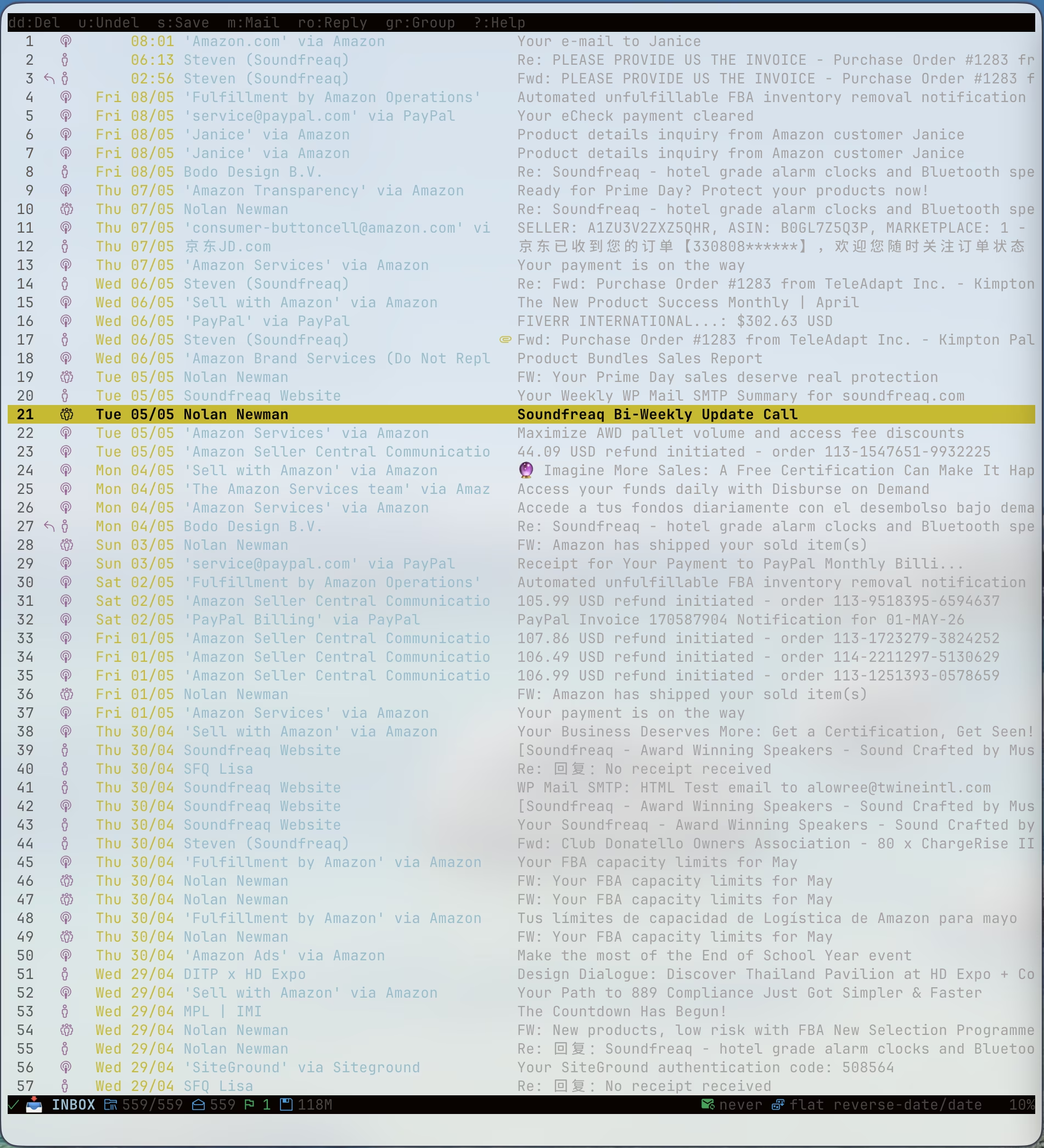
1. index
The main message list showing your mailbox contents. It displays headers (sender, subject, date, flags) in a tabular format.
Purpose: Navigation and management of email messages.
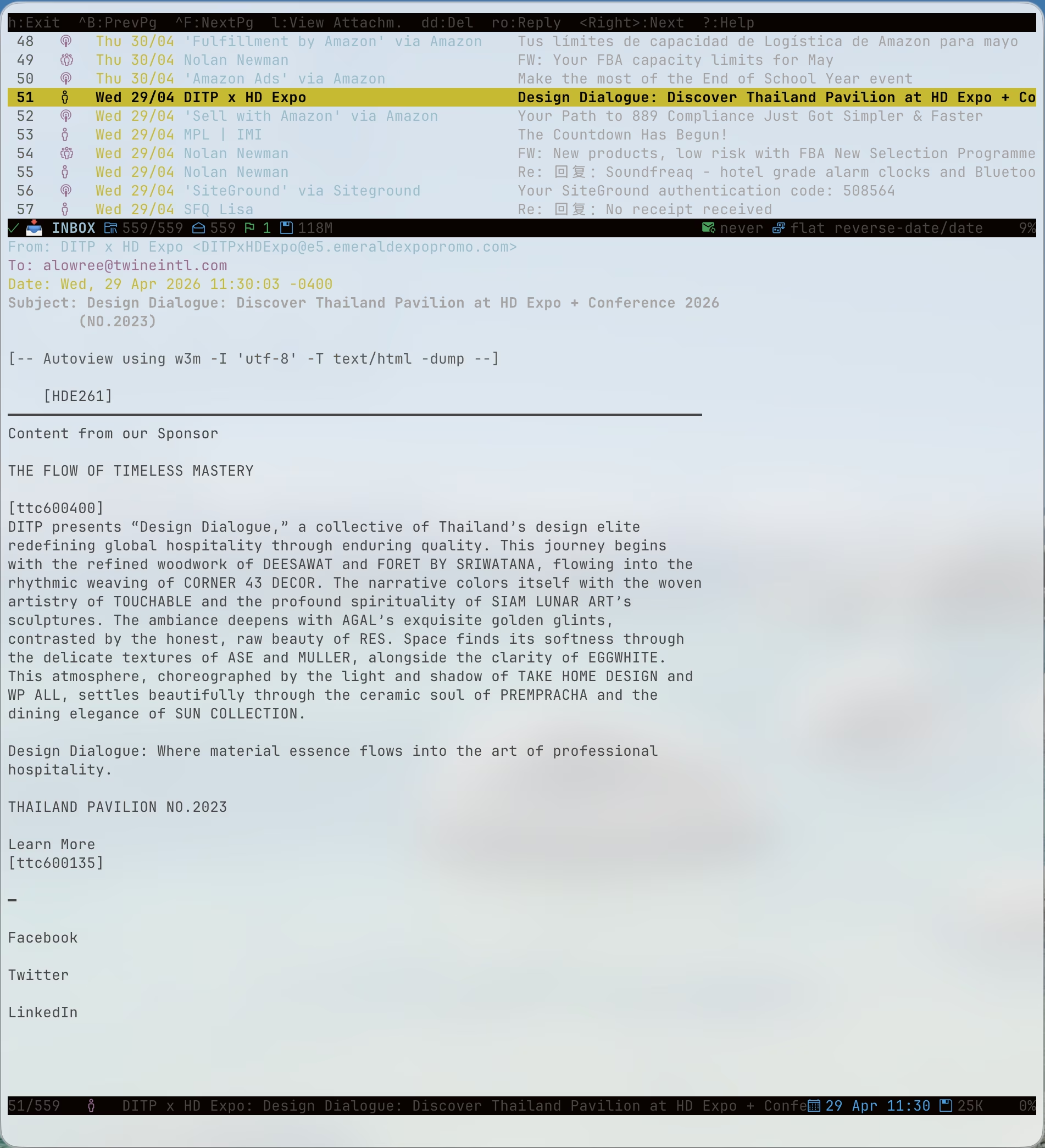
2. pager
The message viewer that displays the full content of a selected email, including headers, body, and attachments.
Purpose: Reading email content without opening external applications.
3. file browser
The file browser used for selecting mailboxes (folders), files for attaching, or directories when saving attachments.
Purpose: Filesystem navigation within NeoMutt.
4. sidebar
The optional sidebar that displays a list of mailboxes/folders with unread counts and flags.
Purpose: Quick navigation between mailboxes without opening the browser.
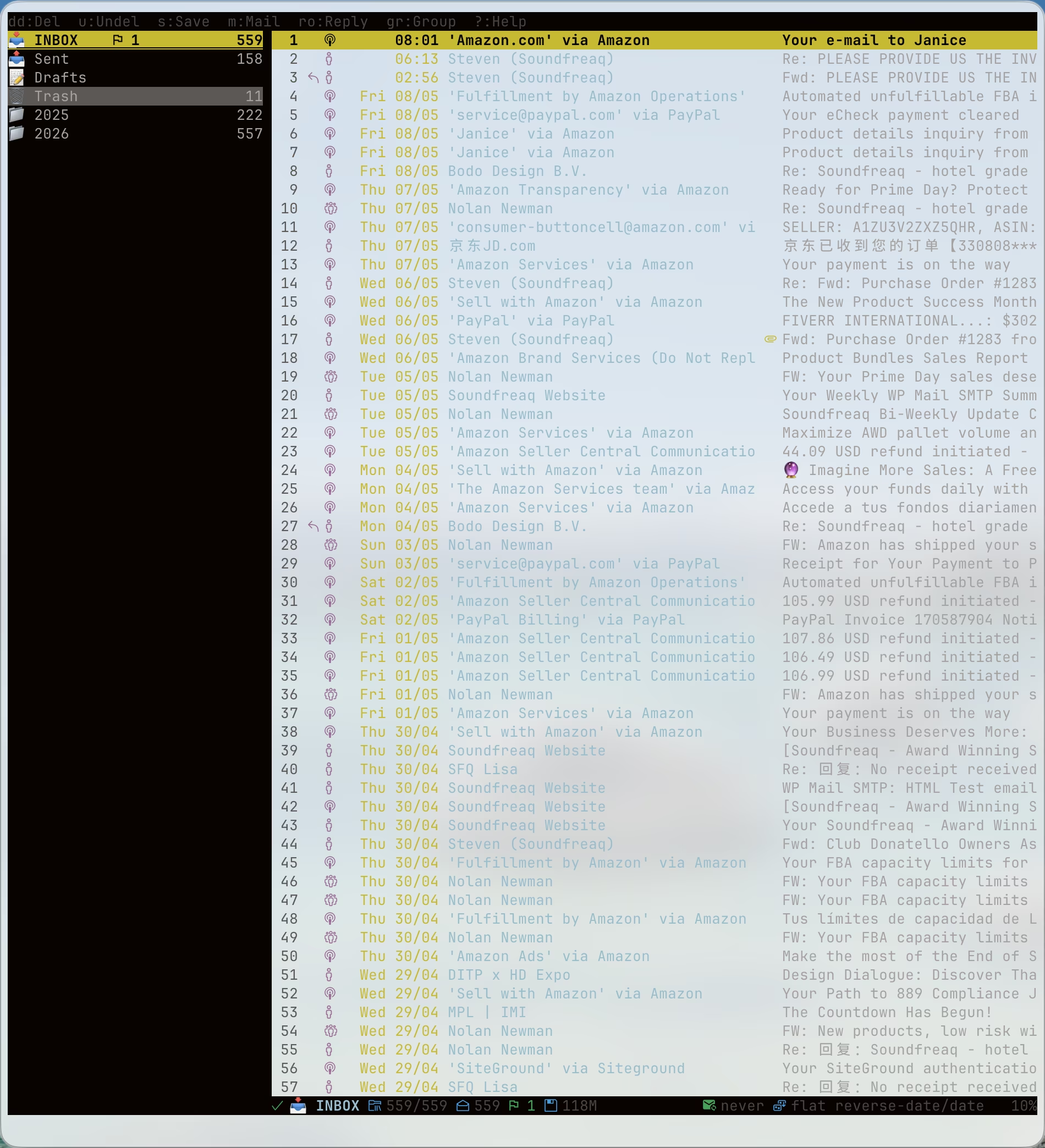
<C-j>to move the highlight down<C-k>to move the highlight up<Return>to open the highlight folder
I don't use the sidebar very often. Instead, I use the defined y key to show incoming mailboxes list. Following is an excerpt from Help for index:
y       show incoming mailboxes list
<change-folder>?
Because command change-folder is mapped to c in index view, therefore y and c? will actually do the same trick, show all mailboxes.
5. help
The help screen showing available keybindings for the current menu.
Purpose: Quick reference for commands.
?underindexview will bring upHelp for index?underpagerview will bring upHelp for pager
6. compose menu
The composition screen where you write new emails, replies, or forwards. Includes editor, header fields, and attachment management.
NeoMutt creates temporary files for composition (e.g., neomutt-hostname-PID-XXXXXX), and Neovim is pre-configured to detect these as the mail filetype.
- Automatic Triggering: Neovim's default filetype detection recognizes the
neomutt-*prefix and setsfiletype=mail. - Mail-Specific Defaults: The
mailfiletype comes with useful defaults liketextwidth=72and proper quote-prefix handling (the>character).
Run set filetype=? to verify.
7. alias menu
The alias menu for selecting from your configured email aliases (often used as an address book).
Purpose: Quick addressing using predefined contact aliases.
8. attachment menu
The attachment menu that appears when viewing messages with MIME attachments. Allows you to save, view, or pipe attachments to external programs.
Purpose: Managing email attachments directly within NeoMutt.
9. query
This interface is not included in the official NeoMutt Screens and Menus.
The interface for querying external address books (LDAP, query_command, etc.) when addressing emails.
Purpose: Searching for contacts/addresses.